
Last Updated: September 2026
The wrong Marvel Rivals sensitivity makes every miss feel mysterious. You over-flick one target, drag behind the next, raise the number, lower it again, then finish the session with no clue what actually helped.
There is no universal perfect setting. There is a clean way to find your setting: lock the variables, run the same tests, change one value, and keep the result that removes a repeated miss.
⚡ Quick answer: Start with a comfortable global sensitivity. Test a 180-degree turn, continuous tracking, and one small correction. Change only one value at a time, then verify it across three normal matches before touching hero-specific settings.
Marvel Rivals is currently on Season 10 and Version 20260917. The September 17 official patch notes did not announce a new sensitivity or aim-assist change, so this guide focuses on a durable testing method instead of pretending one patch has a magic number.
Table of Contents
- Why copied settings fail
- The calibration loop
- Mouse sensitivity and eDPI
- Controller settings
- Hero-specific profiles
- A 20-minute practice plan
- FAQ
Why Copied Marvel Rivals Sensitivity Settings Fail
A sensitivity number without context is barely a setting. Mouse DPI, usable mousepad space, stick condition, response curve, frame pacing, hero choice, and your own hand all change how that number behaves.
Copying a strong player's setup can still give you a baseline. It cannot prove the baseline fits you.
The useful question is not “What sensitivity does this player use?” It is “Which repeated miss am I trying to remove?”
- You keep passing the target: the setting may be too fast, or your stopping control needs work.
- You trail moving targets: the setting may be too slow, or your eyes are reacting late.
- Your crosshair shakes during tiny corrections: speed may be too high, your grip may be tense, or a deadzone/curve is fighting you.
- You cannot reverse the camera in one comfortable motion: your turn speed may be too low for the space or hero.
Those are hypotheses, not verdicts. Test them before changing anything.
NetEase added a Raw Input mouse option and fixed a bug where frame rate could affect sensitivity in the March 2025 official update. That history matters: input feel is not only an in-game sensitivity number. Keep frame rate and input conditions stable while comparing tests.
Use One Marvel Rivals Sensitivity Calibration Loop
Write down your current values before the first change. A screenshot works. You need a safe rollback and a real baseline.
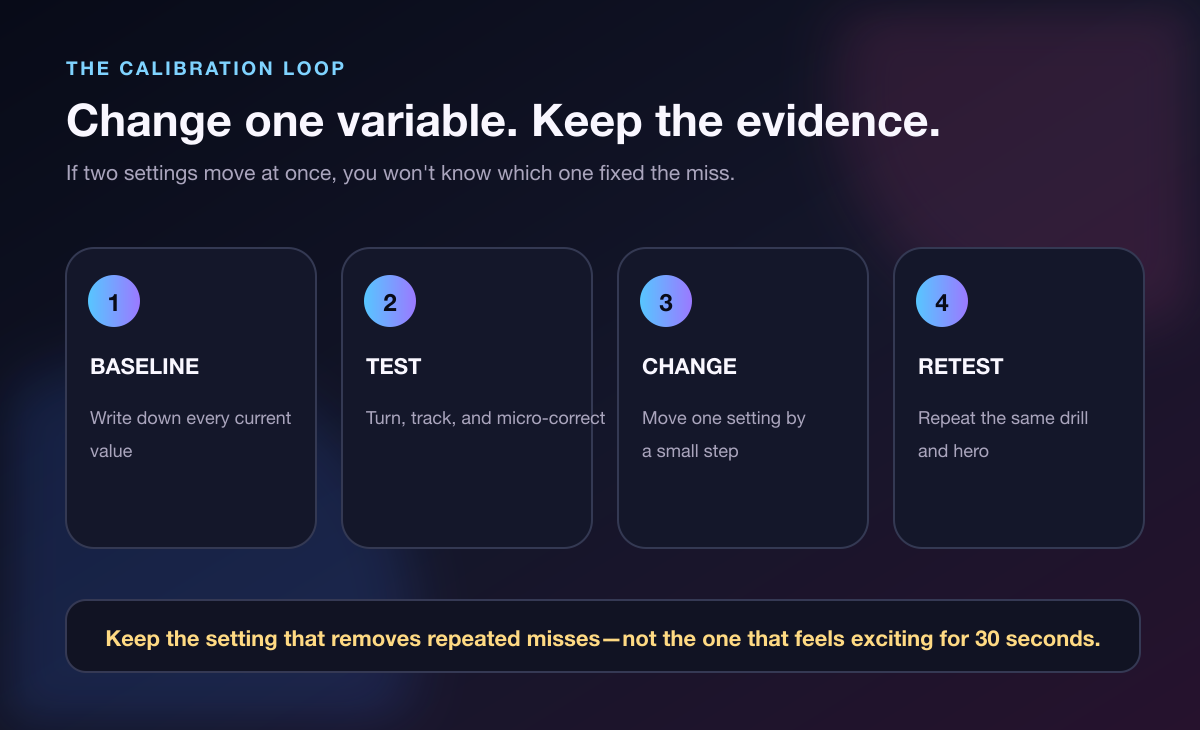
Run this loop:
- Baseline: Record sensitivity, DPI or controller values, response curve, deadzones, aim-assist values, frame-rate limit, and selected hero.
- Test: Use the same three drills in the same practice area.
- Change: Move one value by a small, noticeable step.
- Retest: Repeat the same drills before deciding.
Do not change horizontal speed, vertical speed, curve, and deadzone together. Even if the result feels better, you will not know why—and you will have no clean fix when it feels wrong tomorrow.
I believe the best sensitivity is boring. It should disappear while you play. If you are thinking about the setting during every duel, it has not earned your trust yet.
⚠️ Watch Out: Do not edit configuration files or use input-emulation hardware to chase a different feel. NetEase's prohibited software and hardware list includes unauthorized client configuration changes, while its adapter policy warns of penalties for keyboard-and-mouse adapters.
Marvel Rivals Mouse Sensitivity and eDPI
On PC, enable the official Raw Input option under the mouse/keyboard settings, then keep your operating DPI fixed while you test. Changing DPI and in-game sensitivity at the same time destroys the comparison.
eDPI is a convenient within-game label:
mouse DPI × in-game sensitivity = eDPI
If you use 800 DPI and 2.0 in-game sensitivity, the result is 1,600 eDPI. That lets two Marvel Rivals players compare overall mouse input even when their hardware DPI differs.
Do not treat eDPI as a perfect cross-game converter. Different games can use different camera math, fields of view, scope behavior, and sensitivity scales. If you are moving from another shooter, use the old value only as a starting point and prove the result inside Marvel Rivals.
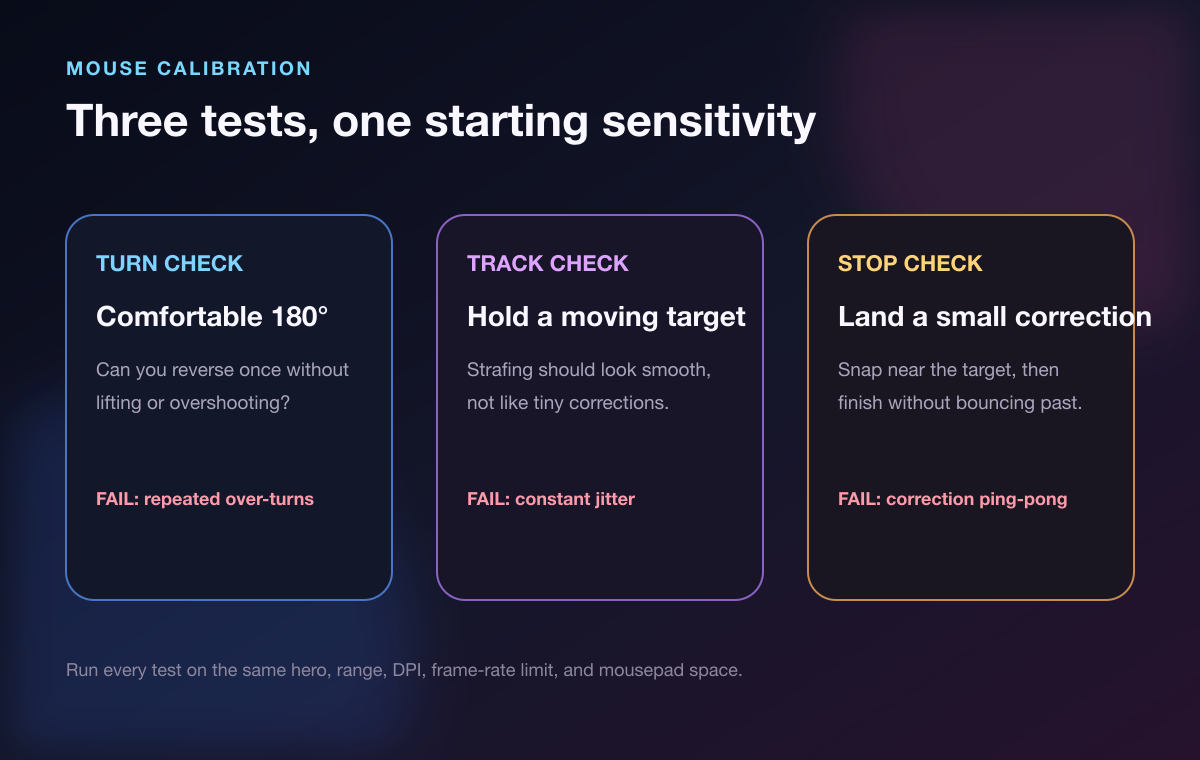
Test 1: One comfortable 180-degree turn
Face a clear landmark, turn behind you once, and stop. Repeat in both directions without rushing.
If you repeatedly stop short and run out of mousepad, raise the setting slightly. If you keep flying past the mark, lower it slightly. One bad attempt means nothing; a repeated pattern across 10 attempts gives you evidence.
Test 2: Smooth tracking
Track one moving practice target while strafing. Watch your cursor movement, not only whether damage numbers appear.
Constant little jumps past the target suggest the setup is too twitchy for your current control. A crosshair that stays behind through the whole path suggests you need a little more speed—or earlier visual reaction. Change one thing and rerun it.
Test 3: Snap, then micro-correct
Start off target, move close in one motion, then finish with a small correction. The final adjustment should settle instead of bouncing across the target two or three times.
This test catches settings that feel fast during big turns but fall apart during precision. Run it before you declare a high sensitivity “better.”
If repeated tests still do not explain the miss, save a short replay. The Marvel Rivals coaching guide shows how to turn a vague aim complaint into one cue, one drill, and one measurable fix.
Marvel Rivals Controller Settings: Fix the Symptom
Controller tuning has more interacting parts: horizontal and vertical speed, response curve, deadzones, aim assist, and sometimes hero-specific overrides. That makes disciplined testing even more important.
The February 2025 official update says NetEase optimized console aim-assist range and mechanics to make crosshair deceleration more visually intuitive. It does not publish one official “best” controller preset. Treat any preset you find online as a starting point, not a rule.
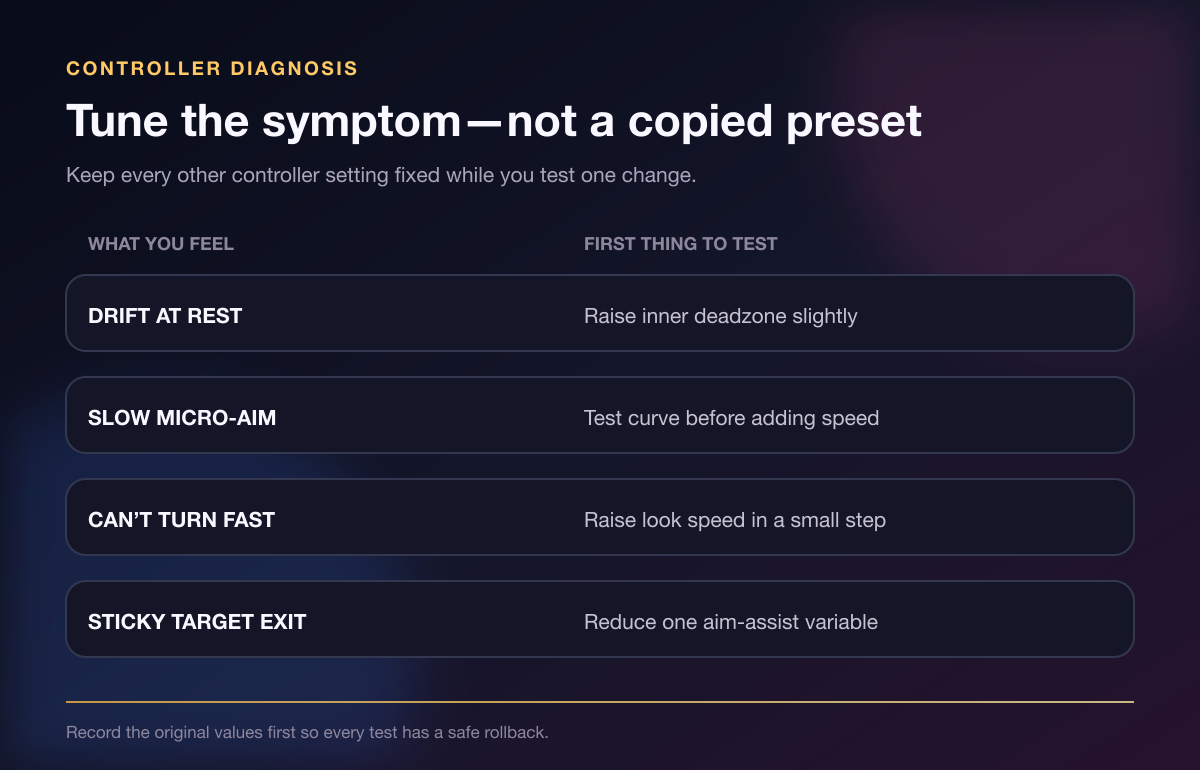
Start with deadzone, but only when drift proves it
Release the right stick in a quiet practice area. If the camera moves on its own more than once, raise the inner deadzone by the smallest available step and retest.
Do not raise it just because a guide says so. Too much deadzone can make the first part of your stick movement feel unresponsive.
Test the curve before chasing raw speed
If tiny adjustments feel slow but full turns feel fine, adding more look speed may create overshoot. Compare the available curve behavior first while leaving the top speed fixed.
Judge the curve on the same tracking and stop tests. You are looking for a predictable relationship between stick movement and camera movement—not the most dramatic turn.
Change aim assist one control at a time
Aim assist can feel wrong in different ways. The reticle may slow too much when two targets cross, leave one target sluggishly, or barely register on the hero you are testing.
Pick one repeatable scenario, change one aim-assist value, and retest. A giant bundle of copied values hides the cause.
If you play ranked on more than one platform, confirm the matchmaking pool before recruiting a practice partner. Our Marvel Rivals ranked crossplay guide explains why PC and console Competitive parties remain separate even when friends can practice in supported casual modes.
When to Use Hero-Specific Sensitivity
Marvel Rivals lets you apply values globally or select a specific hero in the settings menu. Start with one global setting. Build a hero-specific override only after one hero fails a repeatable test that your normal setting passes.
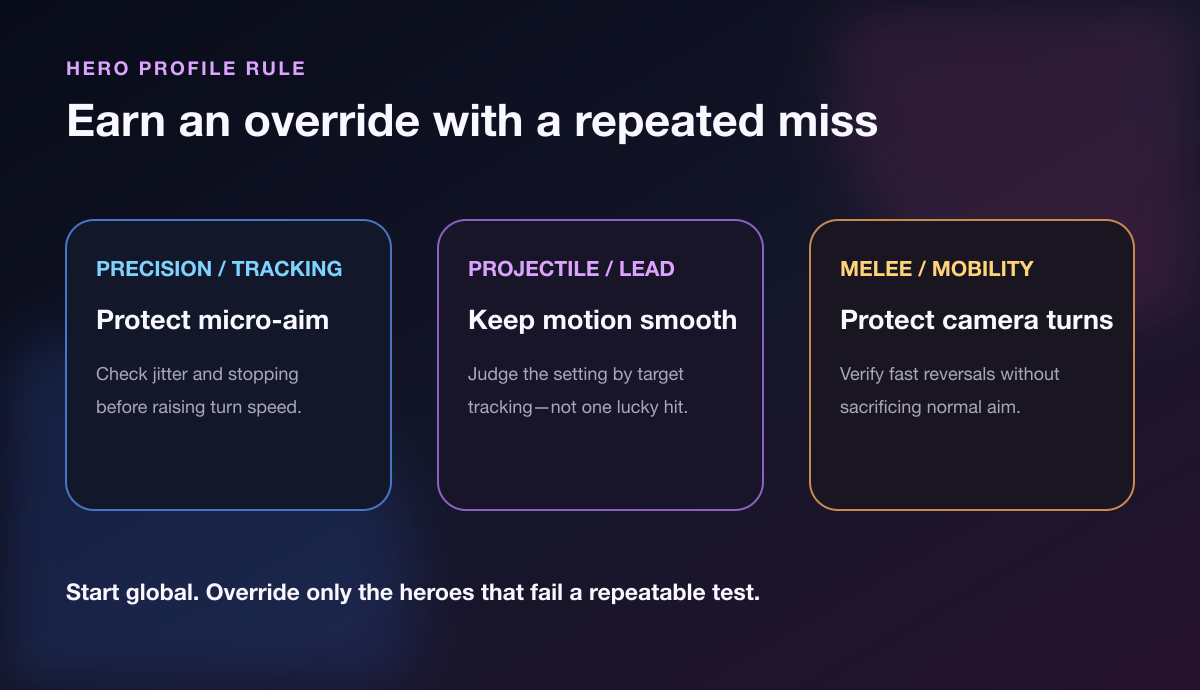
A precision-heavy hero may expose shaky micro-corrections. A projectile hero may punish uneven tracking. A melee or mobility hero may demand fast camera reversals. Those differences justify testing; they do not justify 50 random profiles.
Use this rule:
- Keep the global setting when the hero passes the turn, track, and stop checks.
- Create an override when the same miss appears repeatedly on that hero and disappears after one controlled change.
- Delete the override when you cannot explain what problem it solves.
Hero swapping gets harder when every profile feels radically different. Keep overrides close enough that your normal camera control survives the swap.
This is also where a teammate helps. Ask them to move through the same short route, call the same target change, and repeat the same duel pattern while you test. Find a Marvel Rivals teammate on Tapin who matches your platform, region, role, and practice goal instead of testing against a different random lobby every time.
A 20-Minute Aim Settings Test
You do not need a two-hour settings ritual. Use one focused block:
- Minutes 0–3: Screenshot current values. Lock DPI, frame-rate limit, hero, and practice location.
- Minutes 3–7: Run 10 turn checks in both directions.
- Minutes 7–11: Track one moving target while standing still, then while strafing.
- Minutes 11–15: Run snap-and-stop corrections from both sides.
- Minutes 15–18: Change one value and repeat the weakest test.
- Minutes 18–20: Record the result: better, worse, or unclear.
Then play three normal games without changing anything. Practice-range improvement only matters if the setting remains controllable in visual clutter, movement, and real fights.
If you need a consistent group for those live tests, the Marvel Rivals LFG guide gives you a screening checklist for platform, rank, role, region, schedule, and comms.
Marvel Rivals Sensitivity FAQ
What is the best Marvel Rivals sensitivity?
There is no universal best number. Use a setting that passes your turn, tracking, and stopping tests with the same hardware and input conditions, then verify it across normal matches.
What is eDPI in Marvel Rivals?
eDPI is mouse DPI multiplied by in-game sensitivity. It helps compare mouse setups inside Marvel Rivals, but it does not automatically preserve the same aim feel across different games.
Should I enable Raw Input in Marvel Rivals?
PC players should test with the official Raw Input option enabled for a direct mouse baseline. NetEase added the option in March 2025 and fixed a separate issue where frame rate affected sensitivity in the same update.
How do I fix controller stick drift?
First confirm the camera moves while the stick is untouched. Raise the inner deadzone by the smallest step, retest, and stop as soon as the unwanted movement is gone.
Should every hero use a different sensitivity?
No. Start with one global setting. Create a hero-specific override only when that hero shows a repeated turn, tracking, or stopping problem that one controlled change fixes.
Keep the Setting You Can Prove
Your Marvel Rivals sensitivity does not need to match a pro, a converter, or the loudest guide. It needs to remove your repeated miss without creating a new one.
Record the baseline, change one variable, rerun the same test, and keep the result through real matches. That is slower than copying a preset—and much faster than changing everything after every loss.