
Last Updated: September 2026
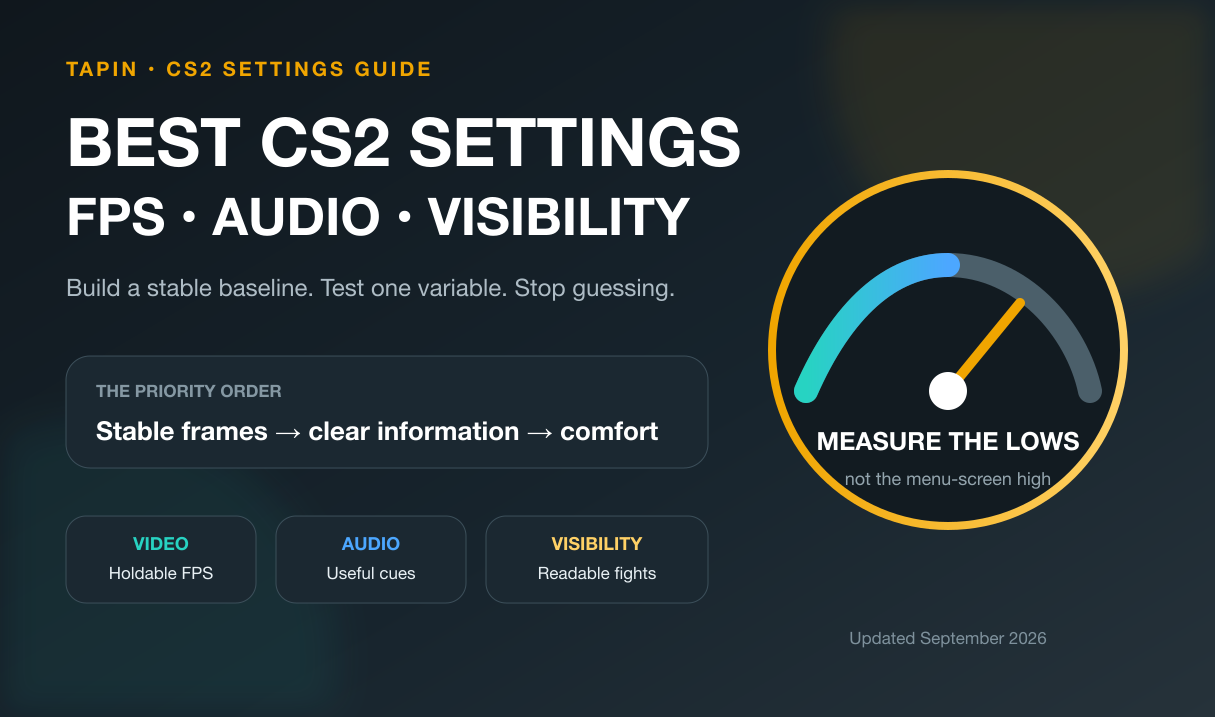
The best CS2 settings protect three things: stable frames, clear information, and inputs you can repeat under pressure. They do not turn a bad peek into a good one. They stop the menu from making a good decision harder to execute.
This 2026 baseline covers video, visibility, audio, radar, and input. It also accounts for Valve's September 22 Rush Hour update{:target="_blank"}, which rebuilt the crosshair controls and made old settings screenshots less reliable.
⚡ Quick answer: Start with Fullscreen, your monitor's active refresh rate, native resolution, Boost Player Contrast on, V-Sync off, low-cost visual settings, Dynamic Shadows on All, and NVIDIA Reflex enabled on compatible hardware. Then test audio and comfort settings one at a time.
Give your teammate one job during the test: call out the exact moment a model, sound, radar cue, or comm gets lost. That separates a config problem from an aim or decision problem before you spend another night copying pro settings.
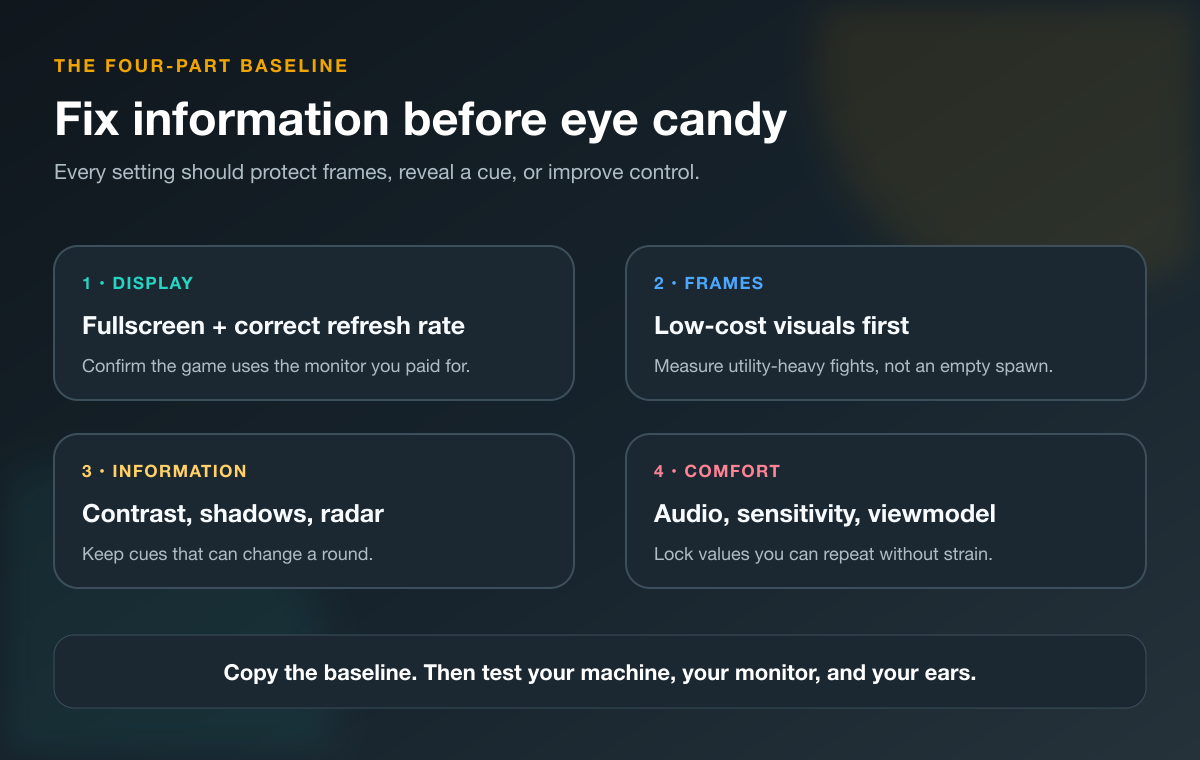
Table of Contents
- Best CS2 video settings
- Resolution and aspect ratio
- CS2 audio settings
- Radar, crosshair, and input
- How to test your config
- FAQ
Best CS2 Video Settings for FPS and Visibility
Use this table as a starting point, not a sacred pro config. The current ProSettings CS2 guide{:target="_blank"} was updated after the September crosshair overhaul and aggregates 940 professional profiles, but your CPU, GPU, monitor, and eyesight still decide what survives a real match.
| Setting | Baseline | Why start here |
|---|---|---|
| Display Mode | Fullscreen | Keeps the display path simple |
| Refresh Rate | Monitor maximum | Prevents paying for unused refresh |
| Resolution | Native | Preserves clarity and full horizontal view |
| Boost Player Contrast | Enabled | Helps models separate from backgrounds |
| Wait for V-Sync | Disabled | Avoids the added latency tradeoff |
| Anti-Aliasing | CMAA2 | Reduces jagged edges at a modest cost |
| Global Shadow Quality | Low | Saves frames while Dynamic Shadows handles useful cues |
| Dynamic Shadows | All | Preserves player shadows from more light sources |
| Model / Texture Detail | Medium | Keeps scene detail readable without maxing it |
| Texture Filtering | Anisotropic 4x | A balanced clarity baseline |
| Shader Detail | Low | Cuts visual cost that rarely changes a duel |
| Particle Detail | Low | Reduces effect clutter and load |
| Ambient Occlusion | Disabled | Removes a costly lighting effect |
| High Dynamic Range | Quality | Avoids the grainier Performance look |
| FidelityFX Super Resolution | Disabled | Keeps the image from being upscaled and softened |
| NVIDIA Reflex Low Latency | Enabled | Reduces system latency on supported hardware |
NVIDIA's official CS2 Reflex guide{:target="_blank"} confirms that the game supports Reflex on compatible GPUs. Start with Enabled. Test Enabled + Boost only if your frame rate has enough headroom and you can compare the same scenario.
The shadow row matters. Global Shadow Quality and Dynamic Shadows are separate decisions now. Lowering general quality saves work, while Dynamic Shadows: All protects competitive cues from both sun and artificial light.
Measure the round, not the menu
An empty spawn is a flattering benchmark. A useful test includes players, smoke, mollies, movement, voice chat, and the part of the map that usually tanks your frame time.
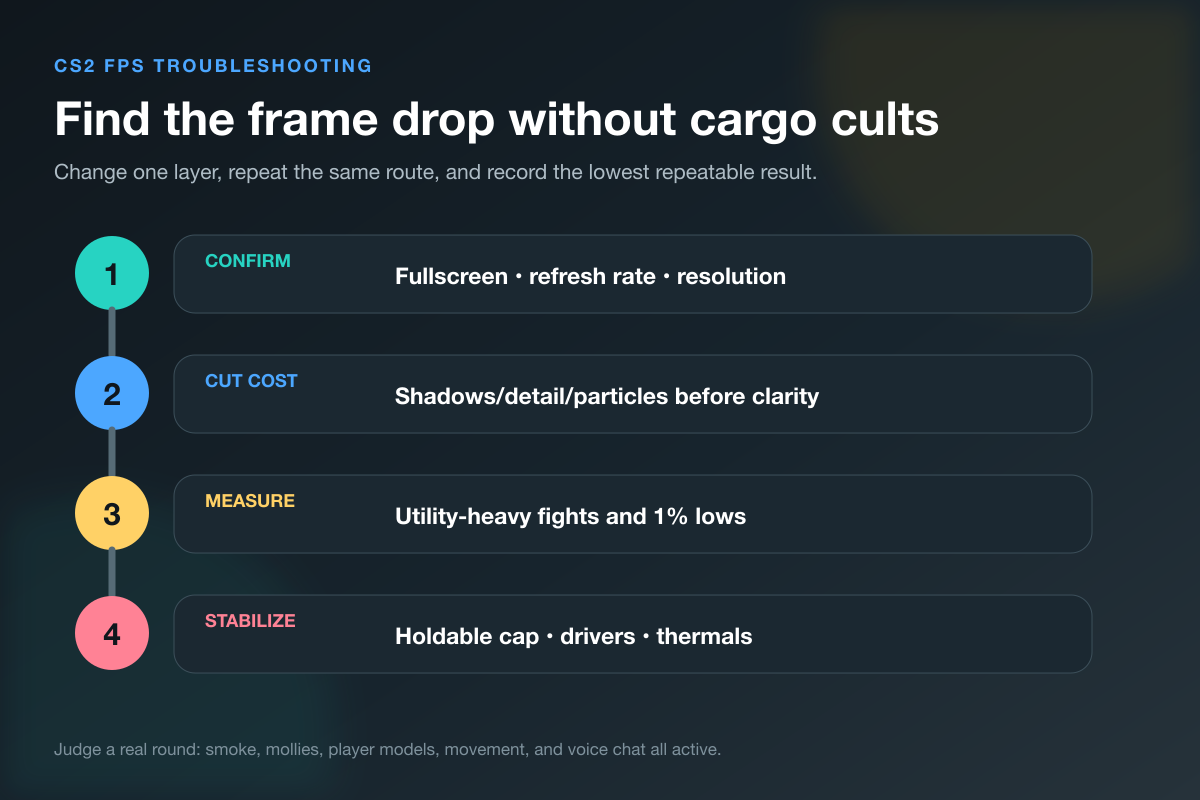
Use this order:
- Confirm Fullscreen, the intended monitor, refresh rate, and resolution.
- Lower shaders, particles, ambient occlusion, and nonessential detail.
- Keep visibility cues such as player contrast and useful dynamic shadows.
- Repeat the same map route with utility and bots or teammates.
- If the lows still collapse, check drivers, temperatures, background tasks, and hardware limits.
I believe the best FPS number is the one your PC can hold when the round gets ugly. A giant peak means nothing if every execute turns into a stutter.
If you want someone to watch the same fights and label whether the problem is frames, visibility, or decision-making, run a focused CS2 session with a teammate on Tapin. The value is not getting their config. It is having another person notice the same failure twice.
Native Resolution or 4:3 Stretched?
Start at your monitor's native resolution and aspect ratio if you are new, returning, or rebuilding from scratch. You get the sharpest image and the full widescreen view.
Four-by-three stretched makes models appear wider because the image is stretched across the panel. It also narrows the horizontal field of view. That trade can feel comfortable if you already built years of muscle memory around it, but it does not make hitboxes larger.
Test resolution like this:
- play the same pre-aim route at native resolution;
- repeat it at one 4:3 option;
- record peripheral misses, target clarity, frame lows, and mouse feel;
- keep each option long enough for the novelty to wear off.
Do not change resolution, sensitivity, crosshair, and viewmodel in the same block. When the next match feels better, you will have no clue which variable earned the credit.
The September update also made crosshair pixel measurements scale with resolution. That keeps proportions more consistent, but you should still re-test target coverage and contrast after any display change. Our 2026 CS2 crosshair guide covers the new Crosshair/Scopes tab, Dynamic Quad, share codes, and a four-match visibility test.
CS2 Audio Settings for Clearer Rounds
Audio is information, not a volume contest. The goal is to hear the cue, place it, and leave enough space for a short comm without shredding your ears.
Use this starting point:
| Audio setting | Baseline | What to test |
|---|---|---|
| Audio Device | Your actual headset/device | Make sure CS2 is routed correctly |
| EQ Profile | Crisp, then Natural if harsh | Footstep and utility separation |
| L/R Isolation | Personal test | Precise left/right versus blended space |
| Perspective Correction | Personal test | Natural image versus harder direction split |
| Enable Voice | Push to Talk | Stops open-mic noise from owning the round |
| Streamline Push to Talk | Enable only if needed | Use it if push-to-talk causes stutter |
| Round / MVP music | Low or off | Prevents music from masking live information |
| Ten-Second Warning | Low | Keep only if it helps your bomb timing |
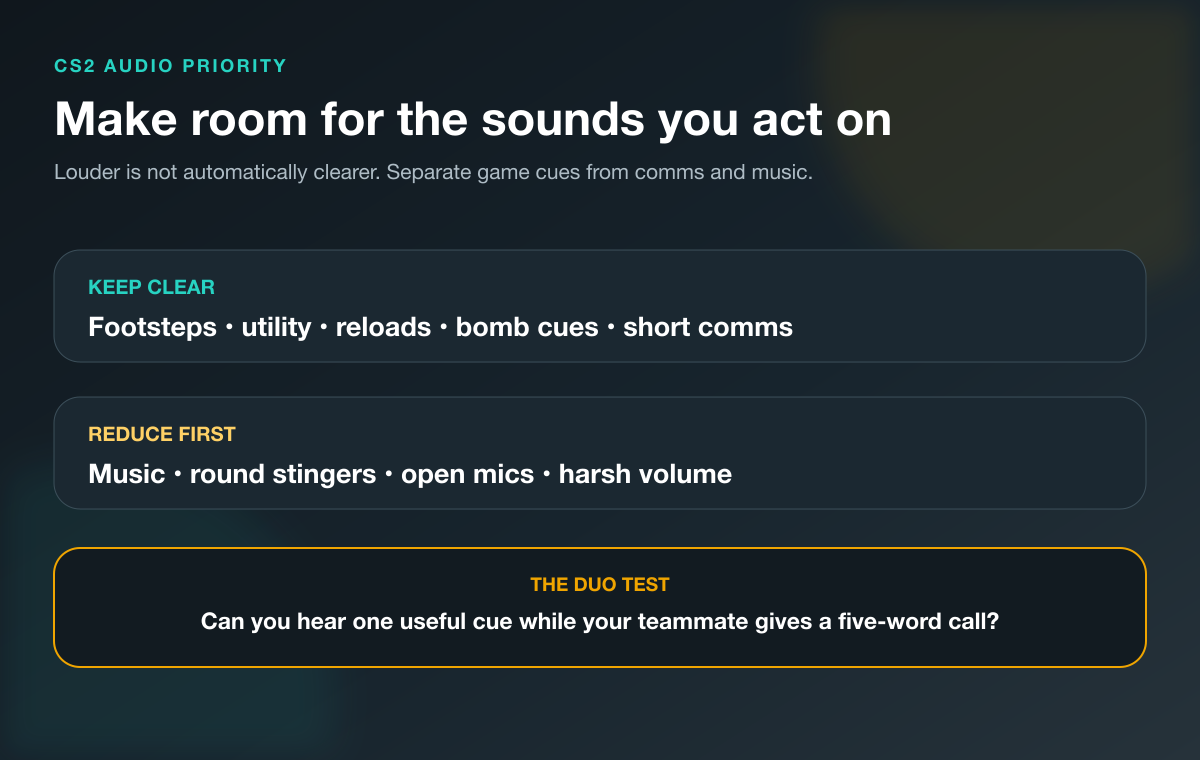
Do not copy L/R Isolation or Perspective Correction blindly. Play the same angle while a teammate moves through three known positions. If you place the sound faster with one option, keep it. If Crisp makes your headset painful, Natural is the better competitive setting because you can actually use it for a full session.
Valve's September 22 update added slower silent reloads and removed the opponent-facing sound from unscoping sniper rifles. That is another reason to keep current with the official CS2 update log{:target="_blank"}: the sound information available in a round can change even when your sliders do not.
⚠️ Watch out: Virtual surround layers from headset software can change positional cues again after CS2 processes them. Test plain stereo before stacking extra processing on top.
Radar, Crosshair, and Input Settings
Your radar should show enough of the map to catch spotted enemies, teammate deaths, and the bomb without forcing you to stare at it. Zoom out until that information fits, then increase HUD radar size only as much as your screen needs.
Use the sound-radius circle around your player to judge when running can be heard. Pair that with short, repeatable team calls instead of asking one tiny minimap to do all the communication.
For crosshair settings, save your current share code before editing. The September menu changed styles, sizes, outlines, and dynamic feedback, so use the live preview and a real map instead of trusting an old screenshot.
For mouse and keyboard:
- calculate eDPI as mouse DPI × in-game sensitivity;
- keep one sensitivity while testing the rest of the config;
- bind each grenade to a reachable key;
- keep Push to Talk away from movement and weapon inputs;
- change one bind, then rehearse it before Premier.
The right sensitivity is not the median number from a pro database. It is the value you can repeat across micro-corrections, transfers, and turns without running out of mousepad or tensing your hand.
If your shots still leave the target after the menu is stable, use our 20-minute CS2 aim training routine. It separates movement, first-bullet correction, pre-aim, recoil, and Deathmatch transfer so the settings stop taking blame for a practice problem.
Test CS2 Settings One Variable at a Time
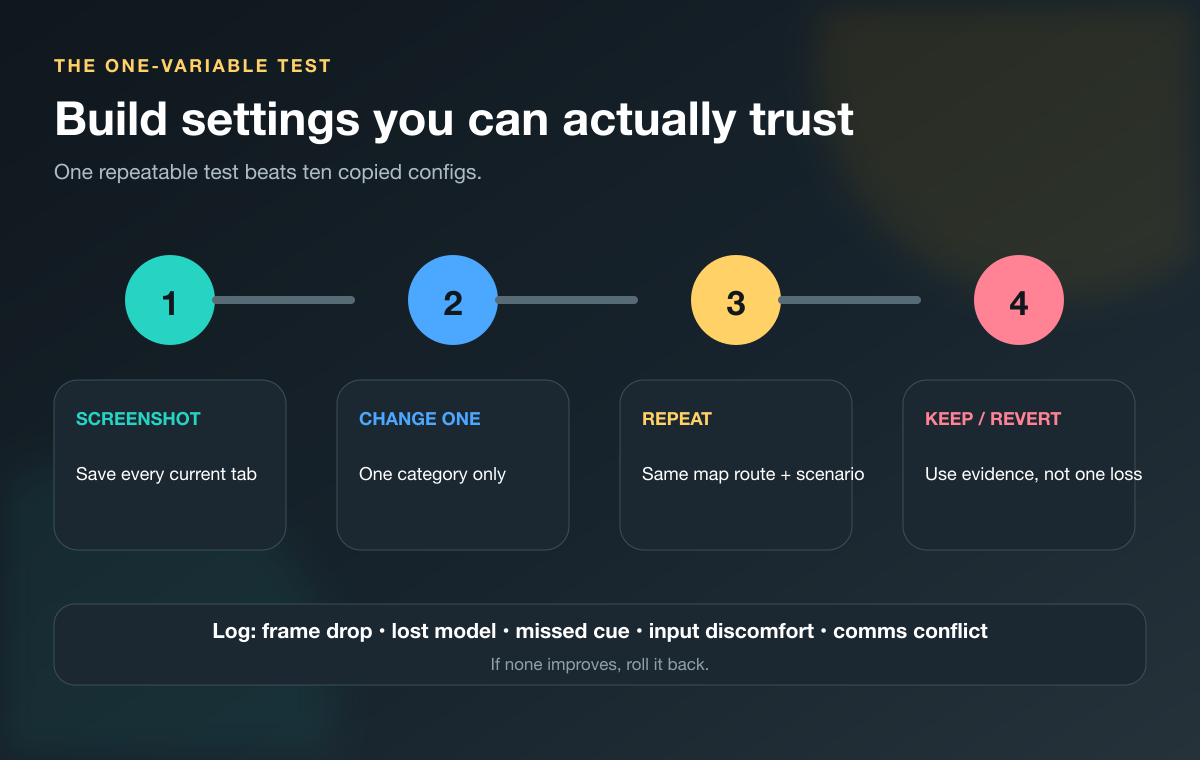
Screenshot every current settings tab before changing anything. That gives you a clean rollback and kills the temptation to rebuild from memory.
Run this loop:
- Name the failure. Frame drop, lost model, missed sound, cramped turn, hidden radar cue, or comm conflict.
- Change one category. Video, audio, radar, crosshair, or input—not all five.
- Repeat one scenario. Same map route, utility sequence, aim drill, and teammate call.
- Keep or revert. Judge the named failure, not kills or one match result.
Ask your duo to spectate 10 fights and mark only the failure you are testing. “Your crosshair disappeared on the bright wall” is evidence. “That setting feels weird” is not.
Once the config survives three or four matches, leave it alone. Use the CS2 Premier ranks guide to build a placement and review plan around the stable setup instead of opening Settings after every loss.
Best CS2 Settings FAQ
What are the best CS2 settings for FPS in 2026?
Start with Fullscreen, your maximum active refresh rate, V-Sync off, low shaders and particles, ambient occlusion off, and a frame-friendly detail mix. Keep Boost Player Contrast enabled and Dynamic Shadows on All so performance changes do not remove useful visual information.
Should I use native resolution or 4:3 stretched in CS2?
Native resolution gives you the sharpest image and full widescreen view. Four-by-three stretched makes models look wider but reduces horizontal field of view. Test both with the same route and keep the one that produces fewer real misses.
Should NVIDIA Reflex be enabled in CS2?
Enable NVIDIA Reflex on supported hardware as a starting point. Test Enabled + Boost only if your system has enough frame-rate headroom, because the goal is lower latency without turning performance unstable.
What are the best CS2 audio settings?
Start with a clear headset route, Push to Talk, low music, and either Crisp or Natural EQ. Test L/R Isolation and Perspective Correction in known positions because the best values depend on your hearing, headset, and preference for hard direction versus blended space.
Does copying pro CS2 settings make you better?
It gives you a reasonable baseline, not an answer. Pros use different monitors, hardware, resolutions, sensitivities, and habits. Copy the starting point, then test one variable against a repeatable mistake.
How often should I change my CS2 settings?
Change them when you can name a repeatable problem or when Valve changes the relevant control. Keep a new version for several matches, compare the same failure, and roll it back if the evidence does not improve.
Lock the Config and Play
The best CS2 settings make the game stable, readable, and forgettable once the round starts. Build the baseline, test one variable, and stop touching the menu when the problem moves somewhere else.
Then queue with a CS2 teammate on Tapin who can tell you whether the cue disappeared—or whether you simply missed it.